Thursday, May 24, 2018

In this post I am going to show you a few ways you can increase your download speed. Hopefully something in this article is useful to you.

How to test your current internet speed

The first thing you will need to do is test your current internet speed. This will let you know whether or not you are getting a lower rate than you should be. You can do this by going to SpeedTest.net and running a test.
NOTE: If you want to test your speed in MBps then go here and go right click > save target as and observe the download or transfer rate.

What do MBps and Mbps mean and why does it matter?

Okay, so, some boring but important stuff here. People often say megabytes when they mean megaBITS. And visa versa. But there is a big difference.
MBps = megabytes
Mbps = megabits
So, if you refer to my speed test above you will see that I am getting 11.53 Mbps per second. To find out how many megabytes that is you just divide by 8 which equals 1.44 MBps.
Now, 1 MB is equal to 1024 KB (kilobytes) so if you want to know how fast you are going to able to download a song or movie you should refer to the KB or MB per second rate as that is usually what they are measured in.
For example, if you are downloading a 50 MB file at 1 MB per second it will take you just under 50 seconds.
Got it?

Download faster: How to speed up your internet

Now let’s dive into a few ways that you can improve your internet speed.
Remember, some Internet companies advertise huge speeds as a theoretical “potential” but in reality you will never get near it. Email or call your ISP and ask them what is actually attainable in your area so that you don’t spend heaps of time trying to get a speed that just isn’t possible.
1. Test a different modem/router
The biggest cause of slowed down internet is a bad modem. For ages I was using a Billion modem that I thought was absolutely fantastic. I was having frequent internet drop outs and blaming them on my ISP. Finally I changed to a new NETGEAR N150 modem and speeds went up and the drop outs stopped. The problem? The old Billion modem wasn’t equipped for ADSL2+. Rookie mistake. Make sure your modem is suited to the internet plan that you are on.
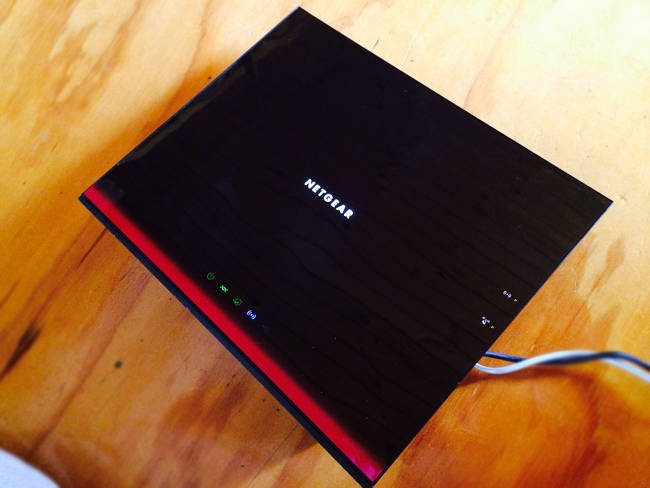
netgear D6300
Update: I’m now using the default modem provided by the National Broadband Network which is automatically configured to work on that system. Again, you just want to make sure that your router is compatible with your plan.
2. Scan for viruses
The next thing you need to do is make sure that no virus itself is causing you to slow down. Sometimes viruses can live on your computer and suck resources away from what you are doing thus slowing down your speeds. I personally use this one as a daily scanner (aff link) on my PC and have found it to be the most accurate over time without slowing down my computer too much.
3. Check for on-system interference
Sometimes your virus scanner or other programs can interfere with your internet speeds. This is really frustrating but you can figure out by simply switching things off one at a time and then running a speed test again. Please note I won’t be responsible for any viruses or spyware you pick up whilst doing this. You should always have good virus protection.
4. Check your filters
If you have your internet connected to a phone line that also has a telephone on it then you will need to make sure you have good quality filters installed on your line. These are little plugs that you attach to the phone line and they help filter out the disturbances. Here is a photo of one of mine.
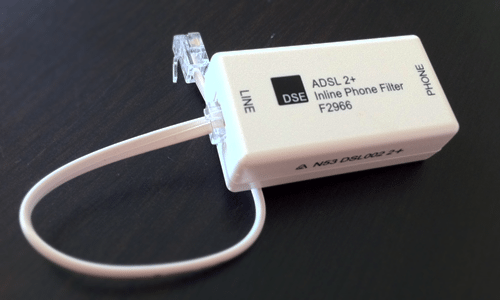
phone line filter
Now, these also need to be different for the different types of internet. If you have ADSL2+ or cable make sure you have the appropriate filter.
5. Try getting rid of your cordless phone
Some people disagree with this but I have found that cordless phones slow down or interfere with my internet even with filters. It is worth doing an isolation test by removing your phones and replacing them with different ones (borrow a friend’s) and see whether you get better results.
6. Plug in
Wifi is nice but wireless internet is often a tad slower than if you plug in to your modem. Try getting that chord out of the box and plugging straight into the modem, especially if it is your desktop computer and you don’t need to move it around very often.
7. Check for external interference
I bet most of you have an iPhone, iPad, sound system and at least one other form of electronic device in your modem area. Am I right? Well, if so, then you need to check to see whether these things are causing electromagnetic interference. Try moving speakers out of the way and getting other electronic devices out of your modem space.
8. Check for Foxtel or other types of TV
Old Foxtel boxes can cause interference for your internet, even if you aren’t using them. If your net speed is slower than it should be and you can’t figure out why, it might be an idea to go for a walk around your house and see if you have a Foxtel (cable TV) box that you didn’t know was there. It could be from a past owner. If so, call up and make sure it is disconnected totally.
9. Shorten and replace cables
The length of your cables and their structure can affect speeds. Try replacing old phone cables, sockets and lines and instead use shorter and newer ones. This can often make a big difference.
10. Have you tried turning it off and on again?
The last suggestion is often the most powerful one. Turn off your modem for one minute and turn it on again. It is called power cycling and can often flush out a bunch of problems that affect your speed. If you are really brave you can even reconfigure your modem with a new password as this can often refresh your settings at the end of your ISP and refresh connections.
11. Update firmware and software regularly
Your router/modem actually has it’s own software that you need to update regularly. You can login to your modem by following your brand’s instructions. For example, for a NETGEAR modem you go to http://routerlogin.com where you can update and tweak your settings. You also need to consider updating your computer’s desktop version, operating system, etc. as often the wireless settings become less compatible over time.
12. Find your router/ISP’s best settings
When you login to your modem/router (see point 11) you will see a bunch of settings relating to channels and so on. Sometimes these settings are not on the best option by default and you’ll need to update them based on the types of devices you use, etc. Check out your router and ISP’s website for the best settings.
13. Check the cabling and do a line test
If all of this fails it’s time to contact your Internet Service Provider and modem company and ask them for a line test and investigation. This may mean that a worker from the company will be sent out to your house, and this can cost an additional fee. The man who came to my property found that the wires in my roof were almost totally chewed away and needed replacing.

Monday, August 8, 2016

Hi Friends ! Proxy Tricks!

I am back with yet another trick proxy of different websites daily we want some websites but they maybe shut down then how. SO here I am to solve your problem. 
U can go here For This website
                                                                   Click Here

Sunday, August 7, 2016

Encrypting Files

For Windows 7, 8, 10 and vista

We generally are people mainly this era. We want to be secretive we just dont like other people knowing our things to others. OK in real life we take necessary Precautions, then what about our computers and folders in them. So here I am to give you a tip about it.
If you want to encrypt a file or folder, this can be done by following these steps:

  1. Select the file or folder you want to encrypt.
  1. Right-click the file or folder and select Properties.
  1. On the General tab, click the Advanced button.
  1. Check the box for the "Encrypt contents to secure data" option.
  1. Click Apply and then OK.
  1. Note: If the "Encrypt contents to secure data" option is not selectable and grayed out or you do not see the option at all, you have a version of Windows that does not support this feature. It is also possible that the hard drive where the files are located is not formatted as NTFS, as this is a requirement for the encryption feature.

Friday, August 5, 2016

These are the shortcut keys
Shortcut Keys Description
Alt + F File menu options in current program.
Alt + E Edit options in current program
Alt + Tab Switch between open programs
F1 Universal Help in almost every Windows program.
F2 Rename a selected file
F5 Refresh the current program window
Ctrl + N Create a new, blank document in some software programs
Ctrl + O Open a file in current software program
Ctrl + A Select all text.
Ctrl + B Change selected text to be Bold
Ctrl + I Change selected text to be in Italics
Ctrl + U Change selected text to be Underlined
Ctrl + F Open find window for current document or window.
Ctrl + S Save current document file.
Ctrl + X Cut selected item.
Shift + Del Cut selected item.
Ctrl + C Copy selected item.
Ctrl + Ins Copy selected item
Ctrl + V Paste
Shift + Ins Paste
Ctrl + K Insert hyperlink for selected text
Ctrl + P Print the current page or document.
Home Goes to beginning of current line.
Ctrl + Home Goes to beginning of document.
End Goes to end of current line.
Ctrl + End Goes to end of document.
Shift + Home Highlights from current position to beginning of line.
Shift + End Highlights from current position to end of line.
Ctrl + Left arrow Moves one word to the left at a time.
Ctrl + Right arrow Moves one word to the right at a time.
Ctrl + Esc Opens the START menu
Ctrl + Shift + Esc Opens Windows Task Manager
Alt + F4 Close the currently active program
Alt + Enter Open the Properties for the selected item (file, folder, shortcut, etc.)
PC shortcut keys for Special Characters
There are many special characters that can be created using keyboard shortcuts. Below are some of the more common and popular special characters and the keyboard shortcuts to create them.
Shortcut Keys Special Character
Alt + 0224 à
Alt + 0232 è
Alt + 0236 ì
Alt + 0242 ò
Alt + 0241 ñ
Alt + 0228 ä
Alt + 0246 ö
Alt + 0252 ü
Alt + 0248 ø
Alt + 0223 ß
Alt + 0198 Æ
Alt + 0231 ç
Alt + 0191 ¿
Alt + 0176 ° (degree symbol)
Alt + 0177 ± (plus/minus symbol)
Alt + 0153 ™
Alt + 0169 ©
Alt + 0174 ®
Alt + 0128 € (Euro currency)
Alt + 0162 ¢ (Cent symbol)
Alt + 0163 £ (British Pound currency)
Alt + 0165 ¥ (Japanese Yen currency)

Celebrations:

Friends! as my Facebook page received 100 likes I am providing you the Link from which you can download Unlimited Games

:) :) 

                                                             Link is here

Sunday, January 24, 2016

KG TO LB CALCULATOR SCRIPT

Note: You should past this in your website to make it appear.


script src='http://ajax.googleapis.com/ajax/libs/jquery/1.7.1/jquery.min.js' type='text/javascript'></script><form name='inputFormt5f12t2' id='inputFormt5f12t2'><div style="background-color:#413f3f;height:190px;width:250px;"><div id="convertTitlet5f12t2" style="position:relative;display:block;width:240px;padding:8px 0 8px 0;margin:0 0 0 0;font-family:Arial, Helvetica, sans-serif;font-size:12px;font-weight:bold;text-align:center;color:#FFFFFF;text-decoration:none;"></div><div style="background-color:#3e7589;height:115px"><input type="text" name="argumentt5f12t2" id="argumentt5f12t2" style="width:207px;height:32px;font-family:Arial,Helvetica,sans-serif;font-size:24px;font-weight:bold;border:0px;position:relative;top:20px;left:21px; line-height: 34px;padding:0 0 0 0;margin:0 0 0 0;" onkeyup='javascript:convertModulet5f12t2();'/><input id="resultt5f12t2" type="text" name="arg"style="width:207px;height:32px;font-family:Arial,Helvetica,sans-serif;font-size:24px;font-weight:bold;border:0px;position:relative;top:30px; left:21px; line-height: 34px;padding:0 0 0 0;margin:0 0 0 0;" readonly="readonly" /></div> <span style="position:relative;display:block;top:10px;left:4px;width:240px;padding:0 0 0 0;margin:0 0 0 0;font-family:Arial, Helvetica, sans-serif;font-size:12px;font-weight:bold;text-align:center;color:#FFFFFF;text-decoration:none;">www.metric-conversions.org<br /><span id='timefieldt5f12t2'></span></span> </div></form><script type='text/javascript'>var enterTextHeret5f12t2='lb';var resultTextHintt5f12t2= 'kg';var convertTitleTextt5f12t2= "lb to kg";var timeStringt5f12t2;var decimalPlacest5f12t2;var dt5f12t2 = new Date(0);var freeText251='Last updated: ';function initConvertt5f12t2(){$('#argumentt5f12t2').attr('placeholder',enterTextHeret5f12t2);
$('#resultt5f12t2').attr('placeholder',resultTextHintt5f12t2);
$('#convertTitlet5f12t2').html("<a href='http://www.metric-conversions.org/weight/pounds-to-kilograms.htm' style='color:#ffffff;text-decoration:none'><!-- freeText-117 -->lb to kg conversion<!-- END --></a>");}function convertModulet5f12t2(){var fromAbbrev='lb';var toAbbrev='kg';decimalPlacest5f12t2=2;var argumentt5f12t2=document.inputFormt5f12t2.argumentt5f12t2.value;argumentt5f12t2=parseInt(argumentt5f12t2)-parseFloat(0);argumentt5f12t2*=parseFloat(1);argumentt5f12t2/=parseFloat(2.2046228);argumentt5f12t2=parseFloat(argumentt5f12t2)+parseInt(0);document.inputFormt5f12t2.resultt5f12t2.value=argumentt5f12t2.toFixed(decimalPlacest5f12t2);}initConvertt5f12t2();</script>

Wednesday, January 20, 2016

WHAT IS COMPUTER:

an electronic device which is capable of receiving information (data) in a particular form and of performing a sequence of operations in accordance with a predetermined but variable set of procedural instructions (program) to produce a result in the form of information or signals.

Top 10 computer mouse tips everyone should know

Most computer users don't take full advantage of the computer Mouse. Below are computer mouse tips and secrets that help you get the full potential of your computer mouse and increase your overall productivity while on the computer.

Shift key and mouse click

Many text editors and programs allow you tohighlight all or portions of text using the Shift keyand the mouse. For example, click at the beginning of the text in the below text box. Hold down the Shift key, scroll to the bottom, and click at the end of the text to highlight all of the text.

Bonus Tip: Holding down the Alt key while dragging and highlighting text in a text editor allows you to selectively highlight text. Highlighting text this way is useful if the paragraph or other text is in a column. Note: This tip does not work in the above box and has to be done in a text editor or word processor.

Take full advantage of the scroll wheel

Today, everyone is familiar with a mouse wheels ability to scroll up and down on a page. However, this wheel can also do so much more, below are just a few examples.
  • The mouse wheel is not just a wheel. It can also be used as a button. Pressing down on the wheel will acts like a third mouse button. The wheel button can be used to open a web page in a tab by clicking the wheel on any link and can also be used to close a tab by clicking the wheel on any open tab.
  • Zoom in and Out on a web page, word document, excel spreadsheet, etc. by holding down the Ctrl key and scrolling up to zoom in and down to zoom out.
  • Hold down the Shift key and scroll down in most Internet browsers to go back to the previous web page.
  • Some mouse wheels can be pushed left or right to also move back and forward between web pages.

Select with double and triple click

Any word can be selected by double-clicking the word. If you want to highlight the whole paragraph or sentence, click the mouse button three times on any word. Try it now on this paragraph by clicking three times fast on any word in the paragraph.
Bonus Tip: If you double-click and then drag your mouse, it will highlight one word at a time.

Right-click menuUse the right-click

Take full advantage of the right-click any time you highlight text or want to view the properties of an object. For example, if you highlight a file or text, you can right-click that highlighted item, copy it, and then right-click anywhere else to paste it.
Bonus Tip: If you highlight or select any file or text and then click and drag while holding the right mouse button, when you let go an option to move or copy that file is shown. This saves you the extra step of having to right-click where you want to paste the item.
Bonus Tip: While in a browser, pressing and holding Ctrl while clicking on any link opens a menu with options for that link.

Ctrl key and mouse click or highlight

While holding down the Ctrl key, you can left-click to select multiple objects or highlight multiple sections of text. For example, in the below selection box, if you wanted to highlight more than one of the items listed, you could hold down Ctrl and select each item you want highlighted.


Bonus Tip: Mozilla Firefox users can also hold down the Ctrl key and individually click on each cell in a table they want to copy. They can also hold down the Ctrl key and drag their mouse down a row to select just that row or text without selecting any of the other text in that table.

Use the mouse side buttons

Many new computer mice also have buttons on the side of the mouse. These buttons can be programmed to do anything. However, by default, the left-thumb button can be used to go back on a web page. Using the thumb button makes browsing the Internet more efficient since you do not need to move the mouse cursor to the browser's back arrow button to go back a page.

Use the Windows Snap To feature

Take full advantage of the Windows mouse Snap To feature, which will automatically move your mouse to buttons that appear in a dialog box. For example, if you delete a file or close a window, you may get a prompt asking you if you are sure you want to perform the task. With the Snap To feature enabled, the mouse cursor automatically moves to the Ok button, so all you have to do is click the left mouse button if you agree. This saves you the time of having to move the mouse cursor to the Ok button and then click Ok.
To enable this feature, open the Mouse properties under the Windows Control Panel and check the Snap To check box under the Pointer Options tab.
Bonus Tip: While changing this feature, we also suggest looking at other available options in the Mouse properties. For example, increasing the Motion speed can also help increase your productivity while using the mouse.

Manage the open window with the mouse

Double-click the top title bar of any window to maximize a window or, if it is already maximized, resize it to a smaller window. You can also double-click the icon for the window in the top-left corner of the window to close that window.

Move the mouse with your keyboard

Instead of using the mouse that came with your computer, you can also enable Windows to use the number pad as a mouse.

Customize your mouse

Finally, if you have a mouse with more than two buttons, installing the included mouse software allows you to customize the mouse even more. For example, if you don't use the side buttons to move back and forth in a web page, change it to something you do more often, such as switching between open windows or opening the calculator.

Wednesday, December 9, 2015

25 Free Downloads You Need Now


Try these great apps to help you speed up your system, clean up your hard drive, and more—all without spending a single penny.


By Sean Portnoy
All of these, plus thousands of other freebies, are always available atcomputershopper.com/downloads. We also offer a monthly e-mail newsletter highlighting five great free downloads; sign up for it here.

The Downloads

The Best Computer Tips and Tricks: Keyboard Shortcuts for Windows Vista and XP and Microsoft Office

Windows Key+E

The best part about shortcut keys is letting your keyboard do half the work. This is a perfect example: This shortcut allows you to open Windows Explorer with one quick keystroke.

Windows Key+M

This is the shortcut to keep in mind when you are at work doing anything but working—it allows you to minimize all of your open windows, leaving just the desktop left exposed. To restore the windows, hit Windows key+Shift+M. Another quick way to do this is Windows key+D, which shows your desktop; to restore, just repeat the same keystroke. This is a handy shortcut to have around the next time your boss is wandering through the office.

Alt+Tab

This allows you to easily scroll through all the windows you have open. If you're working in Word and referring to something in Explorer, for example, you can toggle back and forth between the two programs. You can also use this to switch between windows in the same program, making multitasking a breeze. Very similar is Windows key+Tab: In XP, it lets you scroll the items on the taskbar, and in Vista, it starts Flip 3D for a fun graphical spin on the same idea.

Alt+F4

This shortcut is a quick way to close a window in any program. Alt+Spacebar+C (which requires less stretching, but more keys) and Ctrl+W do the same thing. Any of the ways will allow you to close a window without using your mouse to hit the X in the upper-right corner.

Ctrl+Arrow Keys

In Microsoft Word, the left and right arrows allow you to move the cursor to the beginning of the previous word or the next word; the up and down arrows will do the same with paragraphs. This is very helpful when editing a document or scanning for any reason.

Shift+Delete

If you want to delete a file—and you don't want to deal with it later in the Recycle Bin—this is the way to go. Just be absolutely sure that this is a file you won't want back!

Hold Shift While Inserting a CD

Have you ever wanted to insert a CD and not use it right away? This shortcut allows you to bypass Autorun when inserting a CD so you can control exactly when you will use a CD you've inserted.

Ctrl+Drag

There are many ways to copy a file, but this just might be the easiest. All you have to do is click on the file, hold, and drag it into its desired location. This works the same as another handy shortcut, Ctrl+C.

Windows Key+U+U

Quickly shut down Windows by hitting the Windows key (don't hold it down), hitting U to reach the shutdown menu, and then hitting U again to shut down.

Windows Key+Pause

Need a quick way to get to the Systems Properties menu without too much thought? Just press these two keys and you'll be brought right to it.

Ctrl+Z, Ctrl+Y

Undo an action by hitting Ctrl+Z; if you change your mind, Ctrl+Y will redo the undo.

Shift + Arrow Keys

Holding shift and pressing one of the arrow keys will highlight text in Word (or a group of Excel cells) without the mouse, selecting in the direction the arrow points.

Ctrl+U, Ctrl+B, Ctrl+I

This one's for Office newbies. It's a snap to underline, bold, and italicize without the mouse if you press Ctrl+U (underlining), Ctrl+B (bolding), or Ctrl+I (italicizing).

The Best Computer Tips and Tricks: Windows Media Player 11

Clear Your History

Perhaps you don't want other users on your computer to know what type of music you listen to (or what videos you've been watching, nudge nudge). You can clear the history by going to the Privacy pane in the Options menu (Alt+T+O), and hit the Clear History button. You can also uncheck the "Save file and URL history in the Player" box.

Roll Back WMP

WMP 11 isn't doing it for you? If you are using Windows XP, you can roll back to a previous version simply by using the Change/Remove function in Add or Remove Programs, which is found in Control Panel. Just follow the prompts, and you're on your way to removing WMP 11.

Watch DivX Movies

Want to watch DivX-encoded movies—including ones in 1080i and 1080p high definition—through WMP? You'll need to install the DivX codec. Download the codec, and you can turn WMP into a DivX player.

Turn on the Radio

In WMP 11, the Internet radio tuner hasn't disappeared; it's just been hidden. To find it, click the down arrow below the Online Stores tab. Then select the Media Guide, and click on the Internet Radio link.

Use WMP with Your iPod

If you'd prefer using WMP rather than iTunes with your iPod, all you need is MGTEK's Dopisp. This $19.95 plug-in (available in a downloadable free trial version) lets you sync MP3 and AAC audio and MPEG-4 video files between WMP and all iPod models, including the iPhone. Alas, it will not work with protected DRM music you've purchased.

10 Essential Firefox Extensions

Clipmarks
Ever wish you could "clip" a piece of a Web page the way you'd tear an article from a magazine? Clipmarks lets you do exactly that, then tag, store, organize, and share your clips. The site's simple toolbar is available for both Firefox and Internet Explorer. Download Now
DownThemAll 1.0
This download manager lets you speed up, queue, and batch downloads from the Web based on your previously defined patterns. Download Now
Foxmarks Bookmark Synchronizer 1.0.1
Foxmarks synchs your bookmarks among different PCs and operating systems, making it perfect for getting your office and home bookmark libraries in harmony. Download Now
FoxyTunes 2.96
FoxyTunes can control any of over 30 media players (including iTunes, Musicmatch Jukebox, and Windows Media Player) straight from the browser window. Artist and track information, play controls, and a slider to adjust volume are presented discreetly in your browser. Download Now
Gmail Manager 0.5.4
This extension that lets you manage multiple Gmail accounts and receive new mail announcements as a pop-up on your status bar, eliminating the need to keep Gmail open in a separate window. Download Now
Googlepedia 0.5.1
Googlepedia shows you the most relevant Wikipedia article alongside your Google search results.Download Now
Greasemonkey
Greasemonkey lets you customize the way Web pages look and work. There are hundreds of scripts available for free, allowing for a huge variety of customization. Download Now
Reload Every
This extension allows you to program Firefox to refresh all open tabs, or one tab, after a set amount of time. It's especially useful for monitoring very active forums. Download Now
Session Manager
Session Manager lets you save the layout and addresses of all your tabs when you shut down Firefox, allowing you to keep that same layout when you open the browser up again. Download Now
Tree Style Tab 0.6.2
As the name suggests, this extension allows you to have a tree-style tab bar, like the folder-view tree that's used in Windows Explorer. Download Now

Monday, December 7, 2015

Bittorent Tips

The Best Computer Tips and Tricks: BitTorrent

Get a Router

If your computer is connected directly to a DSL or cable modem, you might want to hold off on any file sharing. Place a router with a built-in firewall between your computer and Internet connection, and set up port forwarding, which can speed up a BitTorrent client's performance. This will help minimize the chances of someone hacking into your system.

Use Your Browser

You don't have to download a dedicated client to use BitTorrent. Point your Web browser to BitLetand type in the Torrent file's URL in the box. It's perfect for the times when you aren't at your home computer.

Use a Thumb Drive

If the Web-based BitLet's barebones nature won't cut it, you can launch the popular, full-featuredBitTorrent client Ã?µTorrent off a USB thumbdrive. Simply download the app onto a portable drive, and access Ã?µTorrent from there.

Schedule Your Uploads and Downloads

If you are using �µTorrent, take advantage of the Scheduler feature. You can set downloads and uploads during specific times of the day when you aren't using your computer for other tasks. This ensures you allocate your Internet's bandwidth appropriately. Go to Options > Preferences > Scheduler to set it up.

Serve Files From a NAS

Some external network-attached-storage devices offer features that cater specifically to BitTorrent users. The Fantom Drives G-Force Megadisk NAS MDN1000, for example, lets you enable it for unattended BitTorrent downloads and create maximum upstream and downstream bandwidth thresholds.

Check Seeds and Peers

When you're downloading, be on the lookout for torrents with the best seed/peer ratio. The more peers trying to access a file, the slower your download will go.

Tips on Yotube

Tips for YouTube

MyTube
Contributing to YouTube's popularity is the fact that you can embed one of the site's videos into your own site or blog. To do so, just copy the code that's next to "Embed" in the box to the right of the video you want to embed. Paste it into your site's code, and you're now participating in viral video.
MyTube, Part Two
If you're nervous about embedding a Flash file into your site, you can just add a link to the video instead. Copy the code that's next to "URL" in the box to the right of the video, and paste it into your site's code.
Export Only
YouTube tries its best not to let you save its video locally, but a crafty coder has created a handy extension for Firefox that can do the job. Download and install VideoDownloader (addons.mozilla.org/firefox/2390). Play a video on YouTube, and click the icon VideoDownloader has installed on Firefox's toolbar to download the video.
Pod People
So you just downloaded some YouTube videos—now, how to get them on your video iPod? Because they're Flash video (FLV) files, you'll need to convert them. One option is to go to Media Convert's Web site (www.media-convert.com), which can automatically convert the FLV file to MPEG-4, Windows Media Video, or another format for you.
Conversion Experience
What if you want to convert that FLV file to play on your PlayStation Portable instead? You can download iTinySoft's free utility Total Video Converter at www.effectmatrix.com/total-video-converter. It will convert FLV files to scads of other video formats.

Hidden tricks in MS Word 2007

View Documents as Drafts

One thing that annoys us about Word 2007 is that it doesn't automatically let you open a document in Draft view (which was the Normal view in earlier versions of Word). To enable this, click the Office button > Word Options > Advanced > General. Then click the box next to "Allow opening a document in Draft View."

Display Formatting Marks

Some people can live without Word's marks for spaces and paragraphs, but for those Word 2007 users who can't, go to the Office button > Word Options > Display. Then, under "Always show these formatting marks on the screen," check the box for spaces, paragraph marks, and more.

Show Page Breaks in Excel

Printing an Excel spreadsheet can be a hassle, but you don't need to go to Print Preview in order to see where a page breaks. Click the Office button, then under Excel Options, click Advanced. Under "Display options for this worksheet" click the box next to "Show page breaks."

Check Your Style

First, Word could check your spelling, and then your grammar; now it can even critique your writing style. If you're concerned about things like wordiness and improper use of the passive voice, have Word 2007 check for them. Click the Office button > Word Options > Proofing. Under Writing Style, select Grammar & Style from the dropdown. If there are particular areas you don't Word to scrutinize, click the adjacent Settings button and then uncheck the appropriate boxes.

Change Your Presentation's Resolution

With larger wide-screen displays becoming the PC-viewing norm, you might not want your PowerPoint presentation to go online formatted for an old-school 800x600 resolution. To bump up your presentation's optimal screen size, click the Office button > PowerPoint Options > Advanced. Under the General area, click Web Options, select the Pictures tab, and choose the screen size you want.

Revert to Old Office File Formats

The latest version of Office "grants" users new default file extensions that aren't compatible with previous versions; you're forced to download and install a plug-in. But if you want to make the old Office file formats your default ones, click Office, and then Options for the specific program you're in. Select Save in the left-hand column, and then under "Save documents," choose the old Office file extension from the pull-down menu next to "Save files in this format."